VideoHero Introduction
Chinese version: VideoHero 技术支持与帮助中心
This is the technical support site and help center for VideoHero. It helps users understand the app’s core features and how to use them.
You are also welcome to leave feedback here. Thank you!
VideoHero is a PowerPoint-to-narrated-video tool for desktop users.
Many people already have complete PowerPoint decks: course slides, technical talks, product introductions, training materials, paid knowledge content, and more. But when it is time to turn those slides into a video, they often get stuck on recording, mistakes in narration, editing, subtitles, and audio-video synchronization.
This is the problem VideoHero is designed to solve: Turn your PowerPoint slides and speaker notes into a narrated video with voiceover, subtitles, and visuals. You do not need to record the screen again and again, and you do not need to learn complex video editing software. Import a PPT, check the narration for each slide, choose a voice, and VideoHero can generate a publish-ready MP4 video for you.
Main Highlights
Section titled “Main Highlights”- PowerPoint notes become narration directly
If your PowerPoint already contains speaker notes, VideoHero automatically reads the notes on each slide and uses them as the narration for that slide. You can also edit each slide’s narration before generation, making it more suitable for spoken delivery.
- Automatically generate AI voiceover
VideoHero includes multiple TTS voices for course explanations, product demos, knowledge sharing, technical walkthroughs, and similar scenarios. You can choose voices in different languages, genders, and styles to quickly generate narration for your slides.
- Automatically generate subtitles and SRT files
When exporting a video, you can choose to burn subtitles into the video, and you can also export an SRT subtitle file for uploading to video platforms, course platforms, or for further editing.
- Local processing, better for private materials
VideoHero is designed for a desktop workflow. It is suitable for course slides, corporate training, internal documents, technical sharing, and other materials that you may not want to upload casually to the cloud.
- Free trial, upgrade only when it works for you
The free version can export videos for the first 3 slides of a PowerPoint, so you can test the actual result first. After upgrading to Pro, you can export complete PowerPoint videos and use more advanced features.
Who is it for?
Section titled “Who is it for?”- Teachers and educators
Quickly turn teaching slides into micro-lessons, online courses, review videos, and knowledge explanation videos.
- Trainers and corporate training teams
Turn training materials, policy explanations, and product training decks into reusable video content.
- Knowledge creators and social media creators
Turn prepared scripts, course outlines, and technical slides into narrated videos for platforms such as YouTube, Bilibili, Xiaohongshu, WeChat Channels, and Douyin.
- Developers and technical speakers
Turn technical proposals, architecture explanations, project retrospectives, and meeting presentations into narrated videos, reducing screen recording and editing time.
- Product managers, founders, and indie developers
Create clear video materials for product introductions, feature demos, release notes, and user tutorials.
- People who do not enjoy recording videos
If you have the content but do not want to appear on camera, record narration repeatedly, or learn complex editing software, VideoHero can make video creation much lighter.
Typical Use Cases
Section titled “Typical Use Cases”- Turn course PowerPoint decks into micro-lesson videos
- Turn technical presentation decks into narrated YouTube or Bilibili videos
- Turn corporate training materials into internal learning videos
- Turn product introduction decks into demo videos
- Turn paid course materials into course videos
- Turn meeting presentation materials into replayable videos
- Use AI voices to generate narration when you do not want to record your own voice
One-sentence Summary
Section titled “One-sentence Summary”VideoHero helps you turn PowerPoint decks into publishable narrated videos: automatic voiceover, automatic subtitles, per-slide editing, and local generation, so your knowledge content can be seen more easily.
VideoHero runs locally and processes files locally. Your PowerPoint files, recordings, generated audio, and exported videos stay on your own computer and do not need to be uploaded to the cloud. This makes it more suitable for users who care about privacy, content security, and local workflows.
Core App Features
Section titled “Core App Features”VideoHero currently has two major feature directions. The first is PowerPoint to video, which is the core feature already available in the app.
The second is talking-head video repair, which will be released in a future version.
PowerPoint to Video
Section titled “PowerPoint to Video”Many users are used to explaining knowledge or technical topics with PowerPoint, but are not comfortable recording videos. During recording, mistakes in speech are also common. VideoHero can quickly turn PowerPoint into video by generating TTS audio from the speaker notes and combining it with the slide visuals, reducing the amount of manual recording work.
Some users prefer different voice styles, so the app includes multiple TTS engines that can simulate a variety of voices for PowerPoint narration.
Step 1: Prepare before you start
Section titled “Step 1: Prepare before you start”
- Prepare your PowerPoint document and put the narration script in the speaker notes, as shown below:
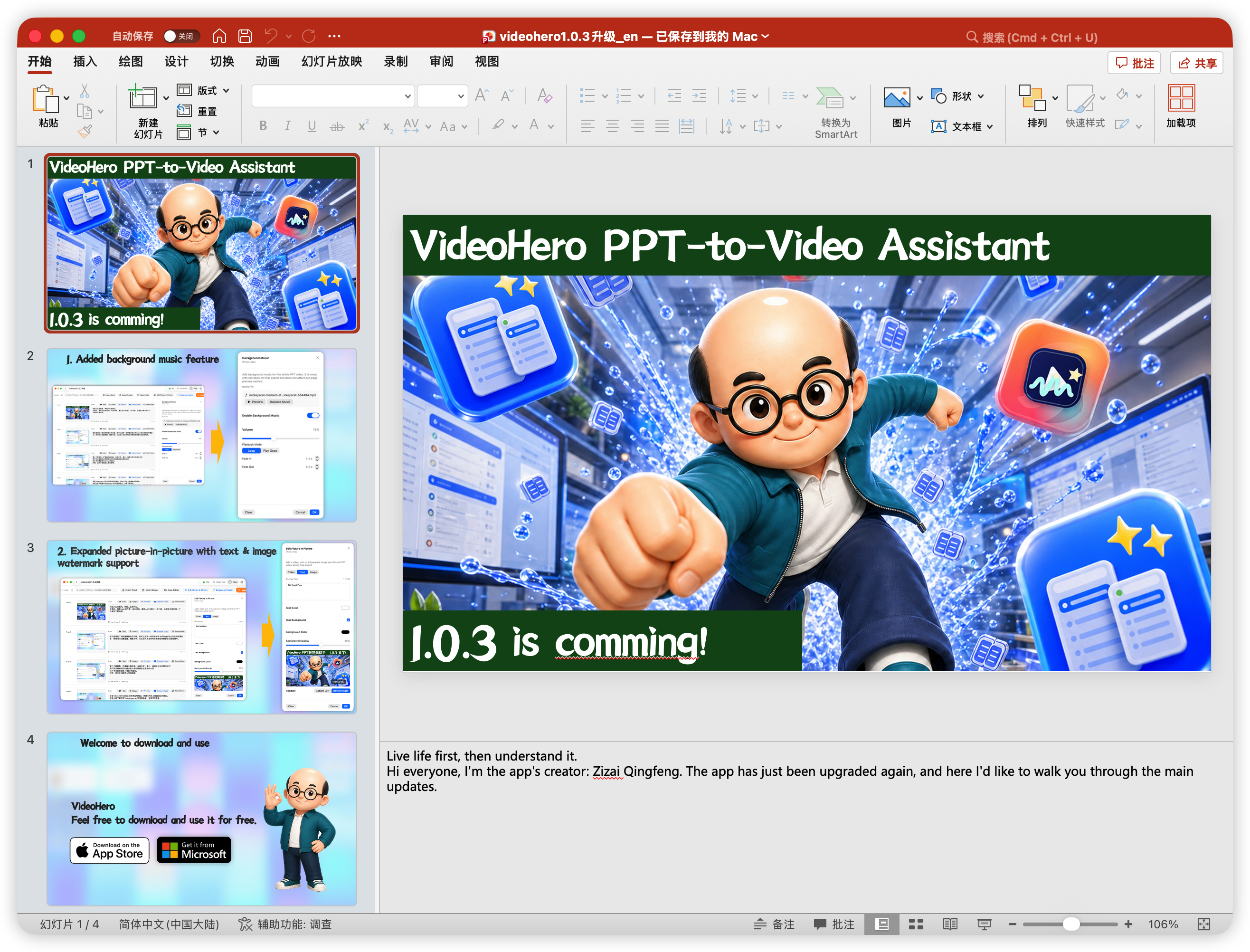
- After editing the PowerPoint content and narration, save the PPT as a PDF with the same file name, and place the PDF in the same folder as the PPT file.
Step 2: Create a new PPT-to-video project
Section titled “Step 2: Create a new PPT-to-video project”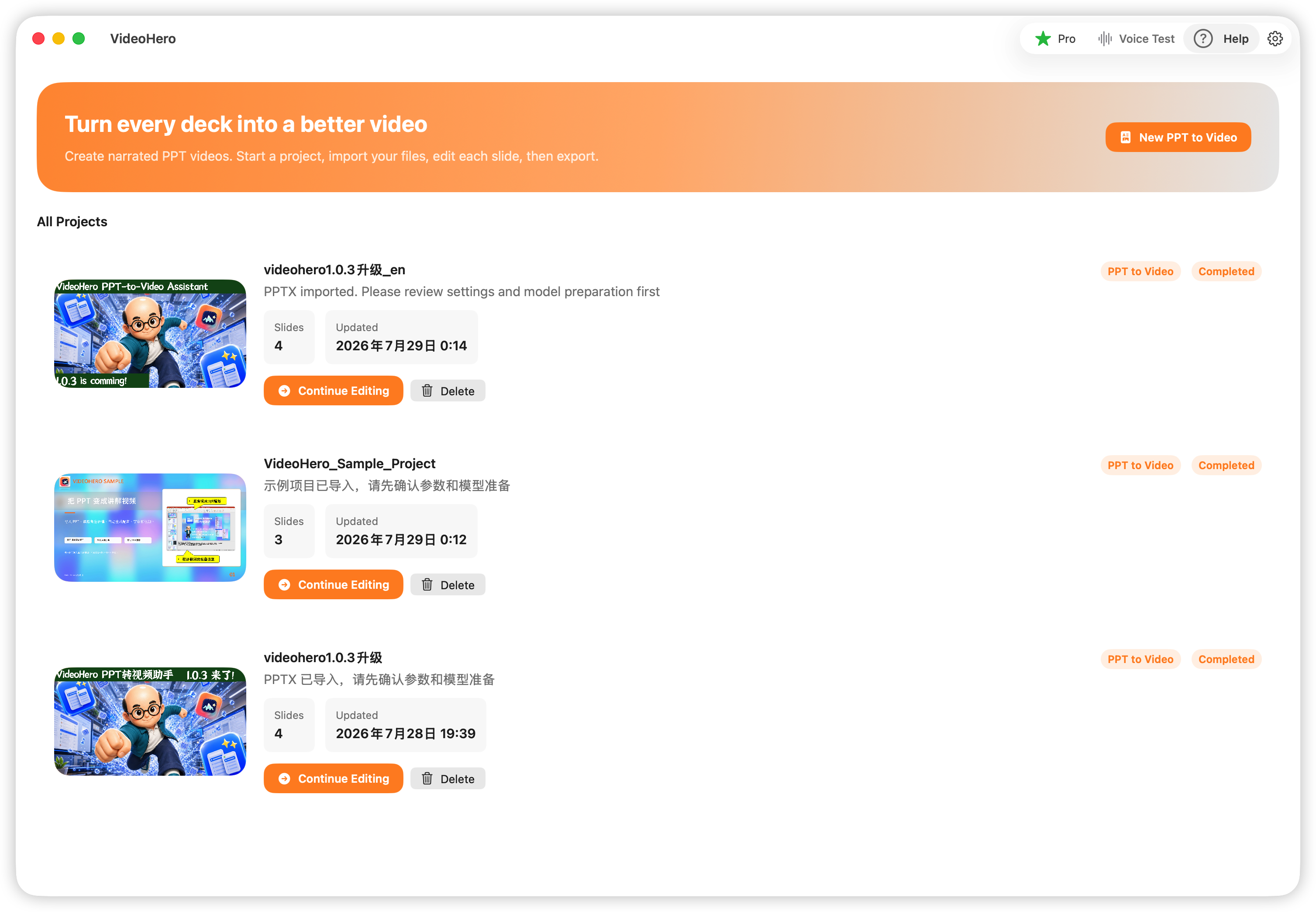
There are three buttons in the upper-right corner of the home page:
- Current user status
By default, the user is shown as Free. After purchasing “VideoHero PPT to Video Pro”, the Pro badge will be displayed.
- Help button
Clicking it opens the help page, which is this current page.
- Settings page
Clicking it opens Settings.
Click the “New PPT to Video” button in the upper-right corner to enter the parameter settings page, as shown below.
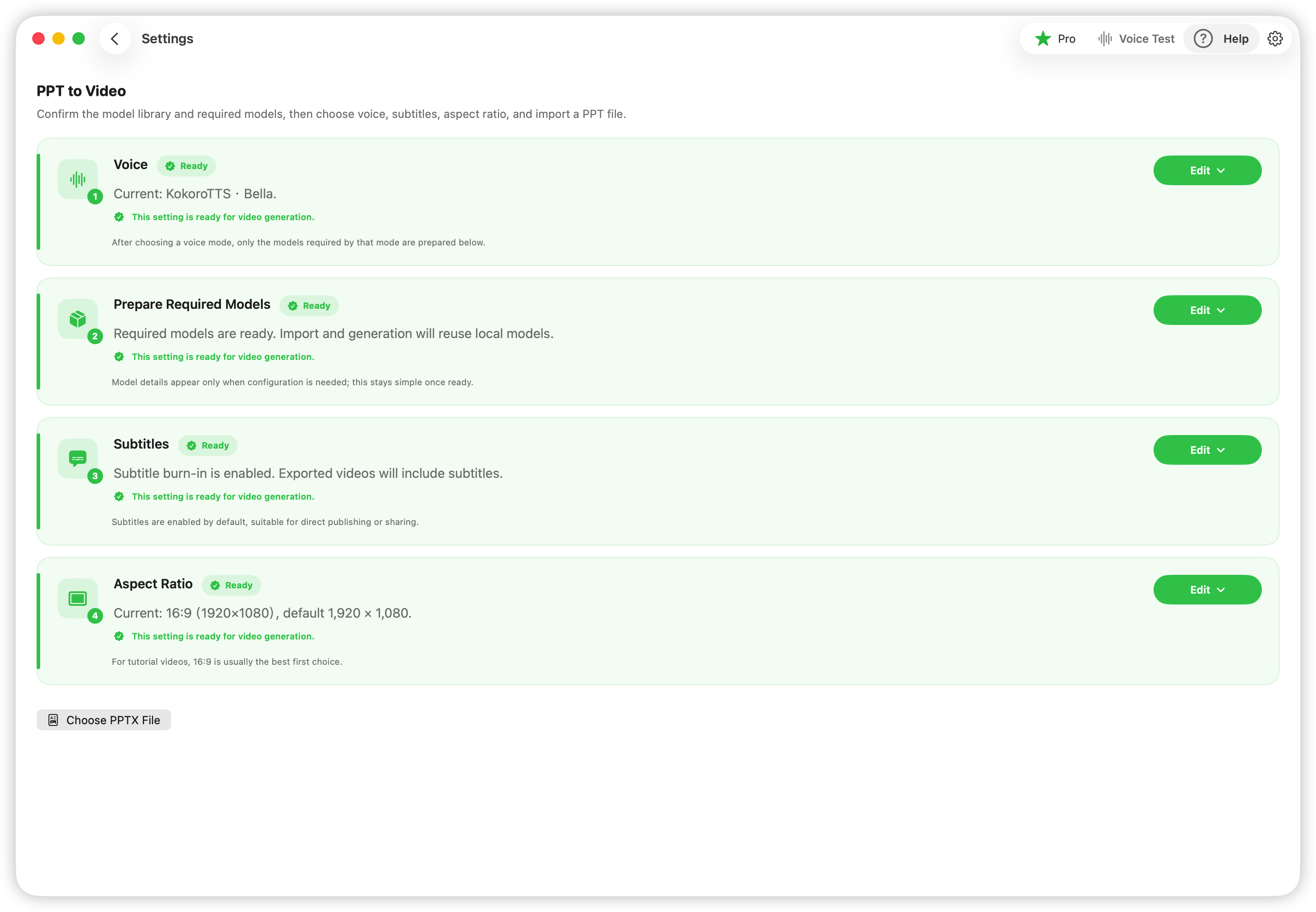
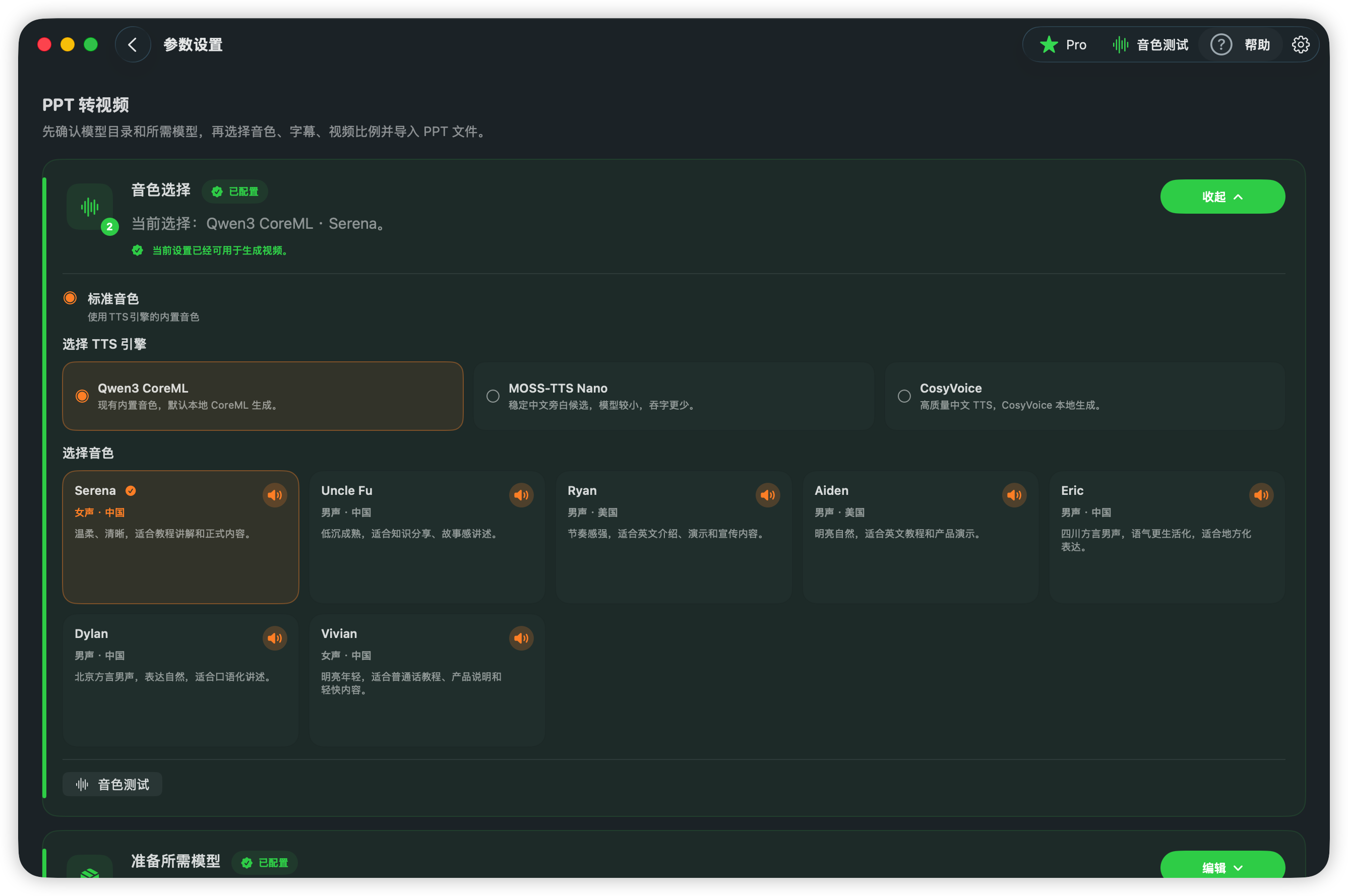
This page requires five parameter settings:
1. Voice selection
Section titled “1. Voice selection”Before choosing a voice, download the required models or import models according to your needs, then spend some time testing the voices.
There are two goals:
-
Understand the voice quality and the TTS generation speed.
-
Generate preview audio for each voice.
The following are test results from the developer’s own machine:
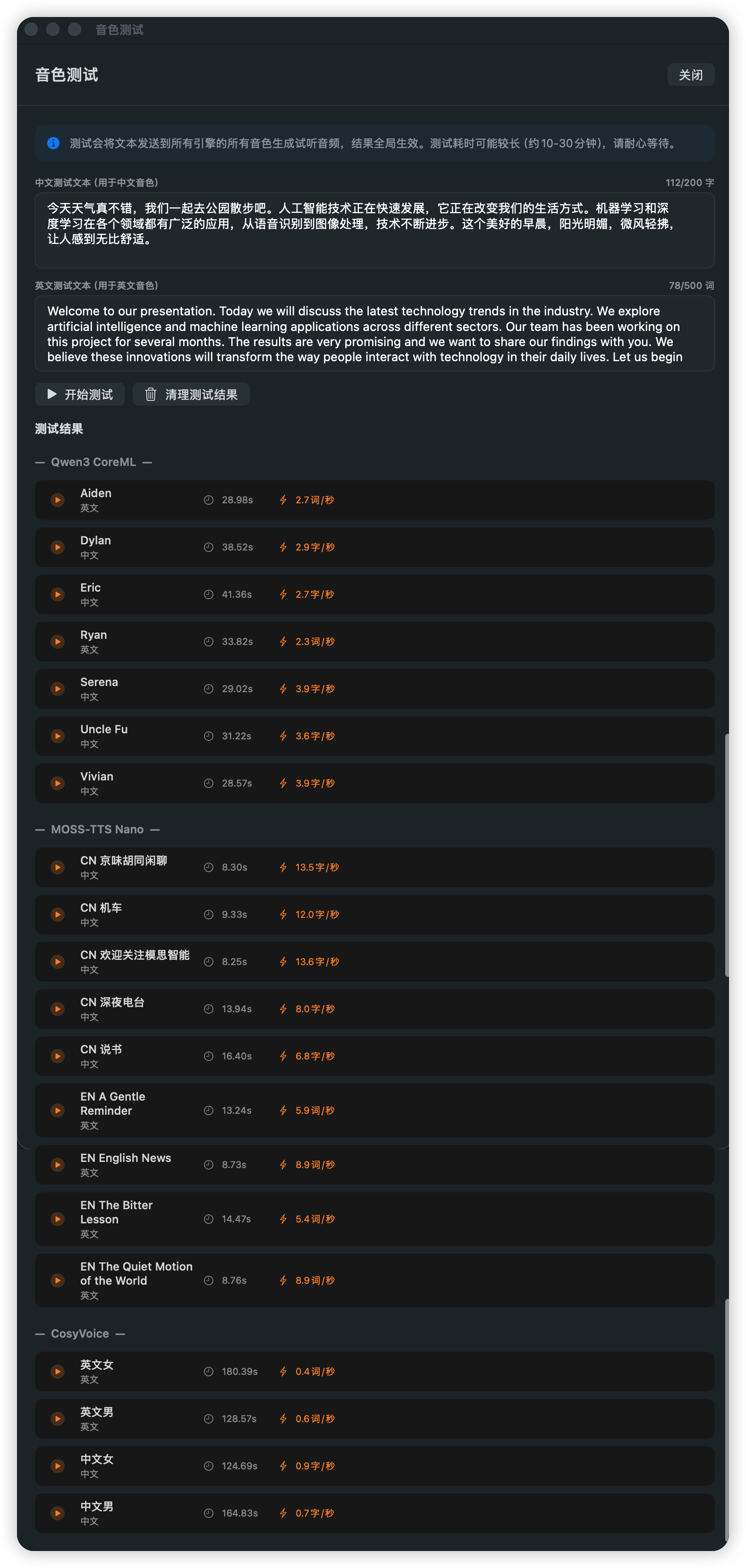
The developer’s machine is an M2 MacBook Pro with 16 GB of memory. From the test data above, MOSSTTSNano and Kokoro TTS are generally faster for TTS generation, followed by Qwen3-TTS, because the latter uses a larger model.
Based on the developer’s experience, when the narration is not too complex, using the MOSSTTSNano engine can be roughly estimated at about one minute of processing time per PowerPoint slide.
Subjective voice quality notes and suggestions
Section titled “Subjective voice quality notes and suggestions”The following is the developer’s rough subjective evaluation of the three engines, for reference only:
- Qwen3
There are 7 voices in total: 5 Chinese voices and 2 English voices.
Among them, Serena is relatively stable, followed by Eric and Vivian. Other voices may occasionally skip parts of a sentence. This engine has distinctive speakers and good audio quality, but occasionally drops words. I am not sure where the issue comes from; the engine I use is TTSKit, adapted for Mac based on the Qwen3-TTS model. If this matters to you, you can choose one of the other two engines.
- MOSSTTSNano
There are 9 voices in total: 5 Chinese voices and 4 English voices.
Recommended: “CN 欢迎关注模思智能”, followed by “机车”, “深夜电台”, and others. This engine generates speech quickly. If generation speed matters to you, this engine is a good choice.
- CosyVoice (deprecated, removed to reduce installer size)
There are 4 voices in total: 2 Chinese voices and 2 English voices.
For the two Chinese voices, “中文女” is recommended first, followed by “中文男” (good sound, but lower volume).
Subjectively, CosyVoice has very good audio quality and sounds natural, but generation is slower and requires some patience.
- Kokoro TTS (added in version 1.0.2)
Kokoro TTS includes many voices, nearly 50 in total. Labels such as “Rating A” or “Rating B+” indicate the relative amount or quality of training data. The rating is somewhat related to voice quality, but it is not an absolute guarantee.
You can choose the engine you want to use, test the available voices, and select the one you like best.
At this point, the “Voice selection” parameter is complete.
2. Prepare the required models
Section titled “2. Prepare the required models”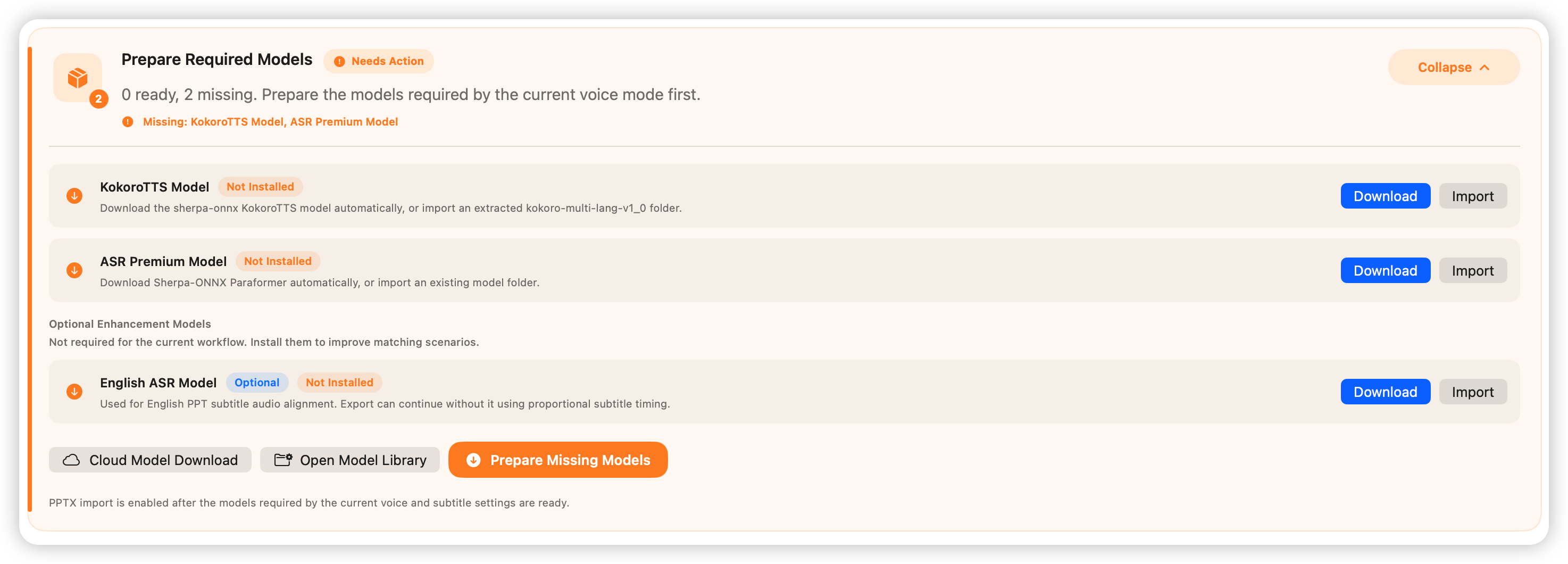
When using the app for the first time, you need to download the models. Click the download button to start downloading.
If the download fails because of network issues, you can also download the models from a cloud drive and import them manually.
For details, see How to Import Models.
After the download is complete, it looks like this:
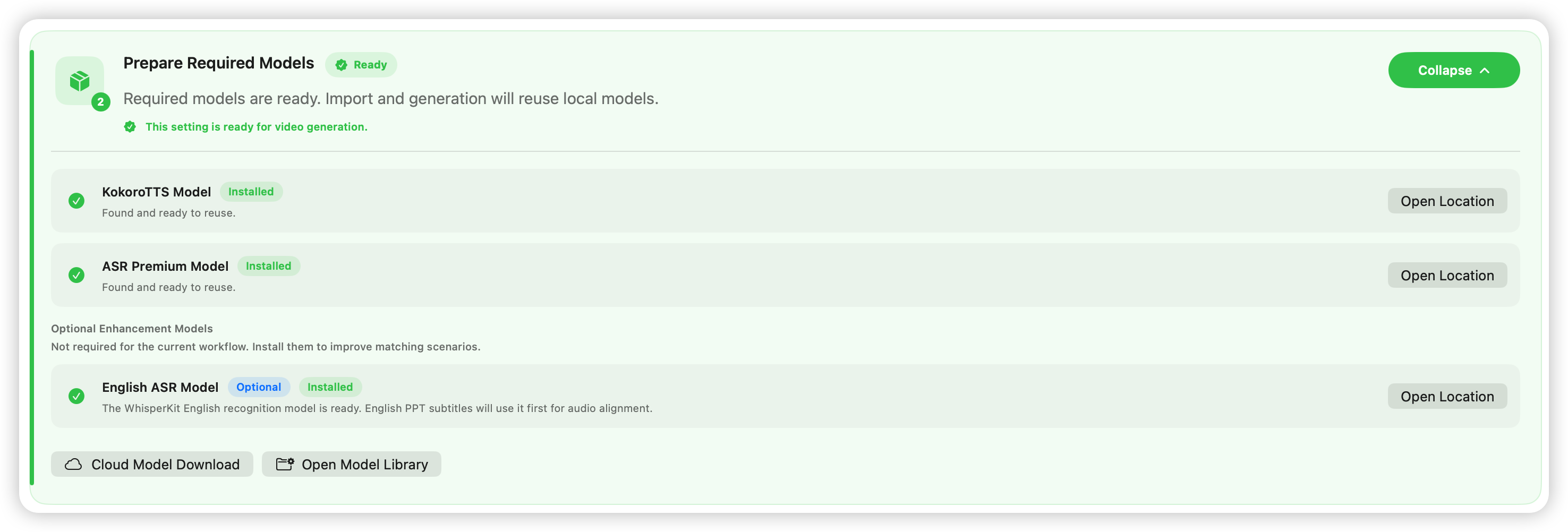
Please note that different TTS engines require different models. The three TTS engines together require about 7–8 GB of model files.
3. Subtitle switches
Section titled “3. Subtitle switches”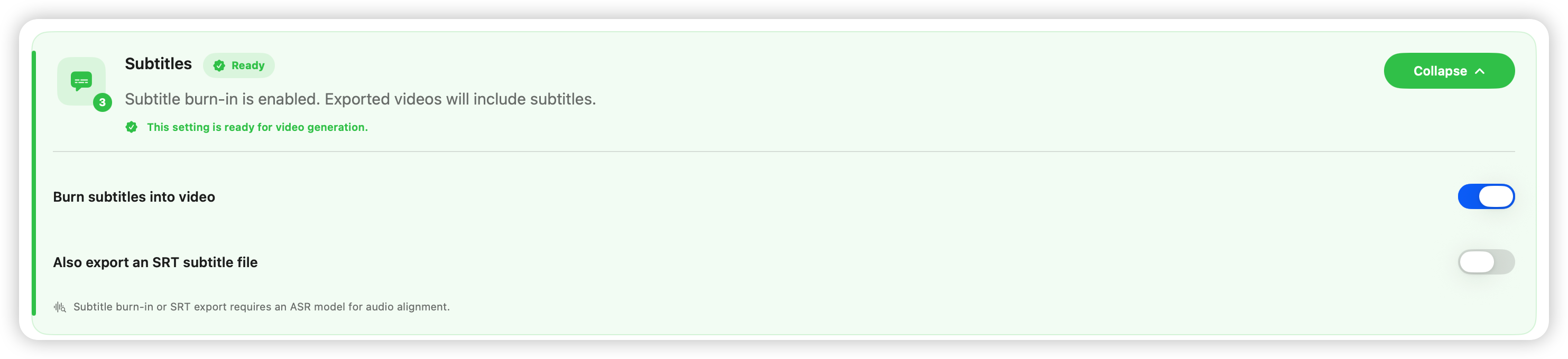
This setting has two switches. The first, burned-in subtitles, is recommended. The second, exporting an SRT subtitle file, can be enabled if you need it.
4. Video aspect ratio

In most cases, 16:9 (1920×1080) is recommended. You can also define a custom aspect ratio.
- Select the PPTX file
Click the “Select PPTX File” button, choose the PPT file, and confirm. Please make sure the PDF file with the same name is also present.
Step 3: Check PowerPoint content and export video
Section titled “Step 3: Check PowerPoint content and export video”On the PowerPoint editing page, you can view the narration for each slide and modify it if needed. We recommend editing the PowerPoint directly for larger changes, though small edits can also be made here.
As shown below, you can edit the narration, preview audio and video for each slide, and hide or delete slides.
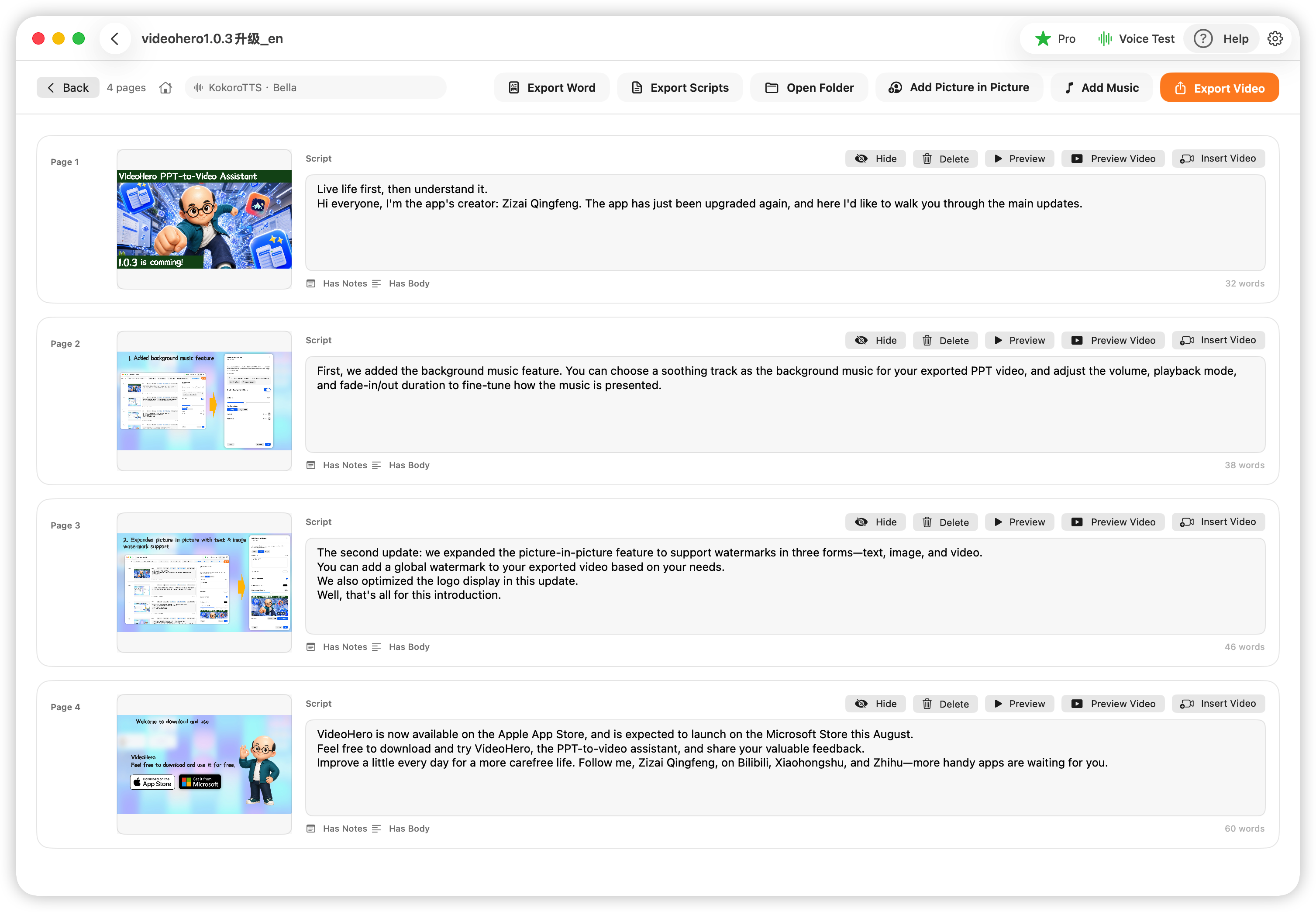
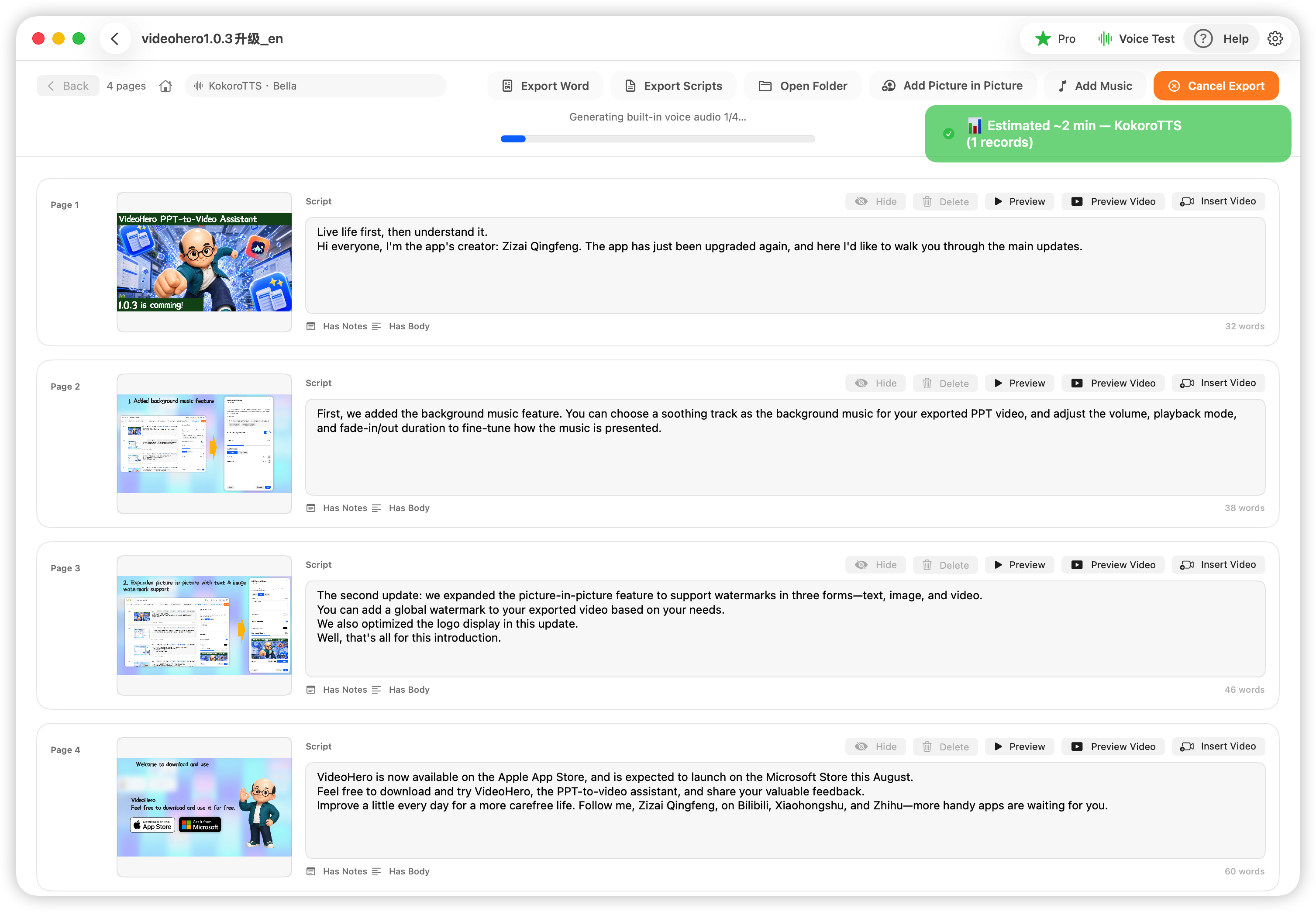
As shown above, click the export button, choose the output folder and file name, then confirm.
Exporting a PowerPoint video can take a while. The actual time depends on the number of slides and your machine configuration.
Recommended Machine Configuration
Section titled “Recommended Machine Configuration”Chip: Apple M1 or later Memory: 16 GB or more
Privacy Notice
Section titled “Privacy Notice”VideoHero respects and protects the personal privacy of all users. This software does not collect your personal information, and does not store or provide your personal information to third parties. This privacy policy may be updated from time to time. By agreeing to use this software and its services, you are considered to have agreed to the full contents of this privacy policy. This privacy policy is an integral part of the software service agreement.
- Scope of application
a) During your use of this software, the software does not collect your personal information.
- Information disclosure
a) This software does not collect your information and does not disclose your information to untrusted third parties.
- Information storage and exchange
This software does not collect or store your personal information.
What should I do if the models cannot be downloaded?
Section titled “What should I do if the models cannot be downloaded?”If the download fails because of network issues, you can also download the models from Baidu Netdisk and import the models manually.
Version >= 1.0.0 && < 1.0.2
Section titled “Version >= 1.0.0 && < 1.0.2”ModelLibrary.zip
Link: https://pan.baidu.com/s/1Mm2awjjdIQuGBagcxALLRA?pwd=dmpr
Extraction code: dmpr
Version >= 1.0.2
Section titled “Version >= 1.0.2”Link: https://pan.baidu.com/s/14rkjNqzN5iJ1jXNPCtukLA?pwd=mdqs
Extraction code: mdqs
PowerPoint can also export PPT files as videos. How is VideoHero different?
Section titled “PowerPoint can also export PPT files as videos. How is VideoHero different?”PowerPoint’s video export is better suited to situations where you have already recorded a presentation. You can manually record narration in PowerPoint, set slide timing, and export the result as a video.
VideoHero is not meant to replace PowerPoint’s export button. Its focus is helping you quickly turn a PowerPoint into a finished video with voiceover, subtitles, and narration text. You only need to prepare the slide content and notes for each slide. VideoHero can generate local voiceover from the narration, prepare subtitles, and export an MP4 video.
In simple terms:
PowerPoint is more like “record your own voice and export the presentation”.
VideoHero is more like “automatically turn a PowerPoint deck into a narrated video”.
If you are already comfortable recording your own voice and manually controlling slide playback, PowerPoint can meet many needs. If you want to reduce the work of recording, editing, and subtitle creation, especially when producing courses, training materials, product explanations, or knowledge-sharing videos in batches, VideoHero is likely a better fit.
Why is video export slow?
Section titled “Why is video export slow?”Because all processing is done locally, including generating audio from the narration, aligning audio and subtitles, and composing the final video.
The developer’s machine is an M2 Mac with 16 GB of memory. On average, each PowerPoint slide takes about 1–1.5 minutes to process.
Can PowerPoint animations be displayed?
Section titled “Can PowerPoint animations be displayed?”Not yet. Technical implementation options will be considered in future versions.