Quick Image Annotation
Quick Image Annotation helps you quickly add clear explanations to screenshots and images.
You can select one or multiple images in Finder, open the annotation window from the right-click menu, and use rectangles, circles, arrows, text, numbers, and blur tools to highlight key areas or hide sensitive content.
Annotation objects support color, line width, font, opacity, and position adjustments. You can also group annotation objects and save them as templates for repeated use.
After editing, you can overwrite the original image, save as a new image, or copy the result directly to the clipboard. This is useful for screenshot feedback, tutorials, issue explanations, and customer support.
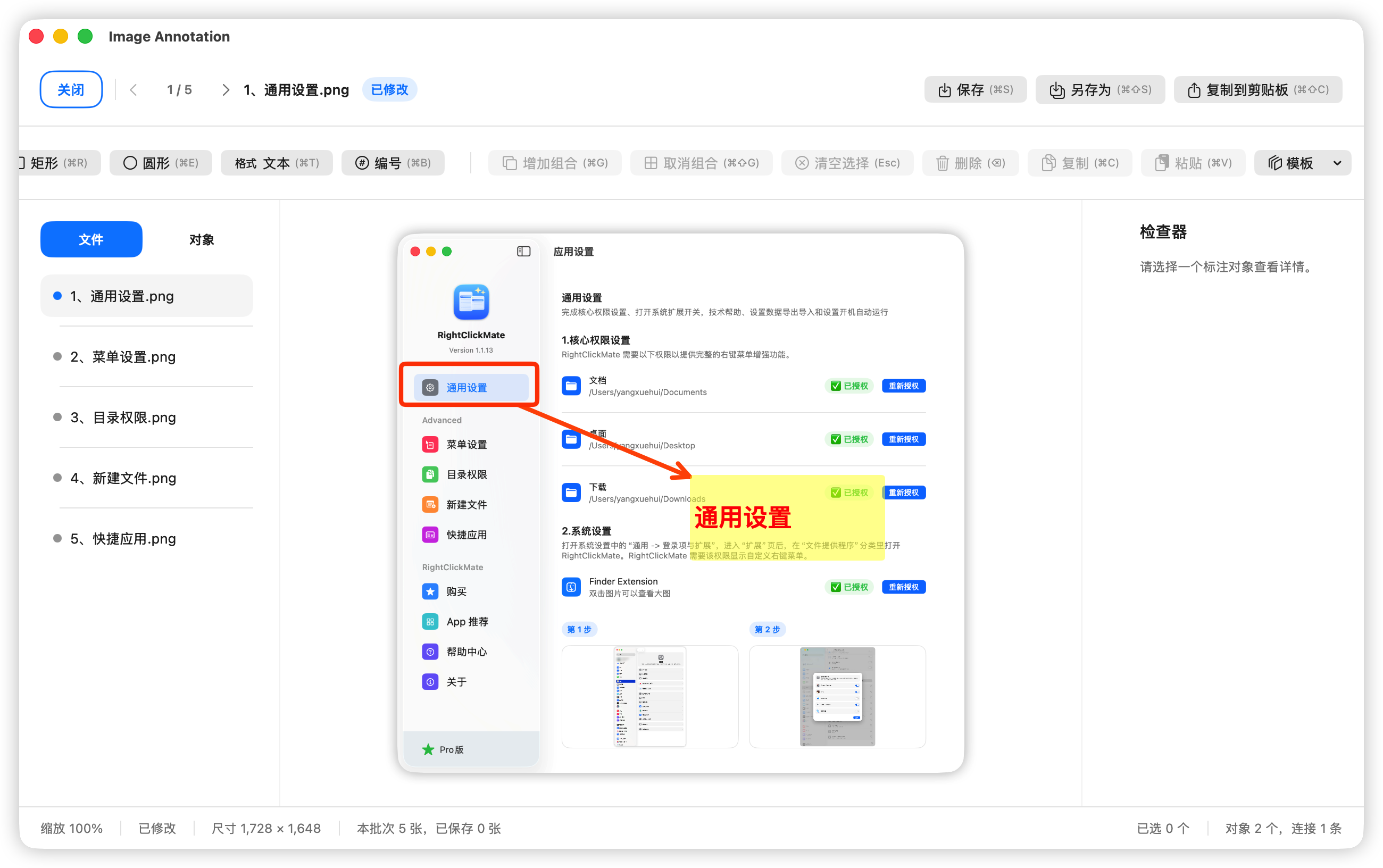
Many annotation workflows are repetitive. For example, you may often need one rectangle, one arrow, and one text box. RightClickMate lets you group annotation objects and save them as a template, so next time you can insert the whole group at once instead of recreating each object manually.